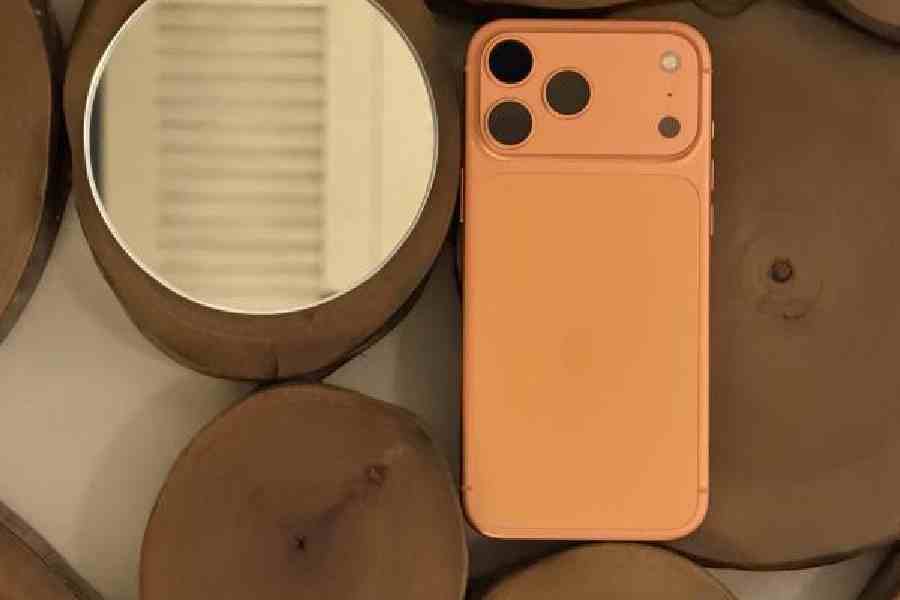
Even months after the launch of iOS 26, the iPhone continues to reveal useful features you may not have noticed, from call screening to something as simple as adding notes while recording an important call. Here’s a look at a few features that might pique your curiosity.
File to ringtone
You can now set almost any audio file as a ringtone in iOS 26, including a Voice Memo, as long as it’s under 30 seconds. In other words, if you’ve a tune stuck in your head, you can finally make it official. Record yourself singing, tap the Share button, then select More to reveal additional options, including Use as Ringtone. One tap later, and it’s job done. You can check it’s worked by heading to Settings > Sounds & Haptics > Ringtone.
Time Picker
Adding a calendar event no longer needs to be a faff. Open the Calendar app, tap +, and choose the time. Instead of wrestling with the five-minute increments on the number wheel, simply tap the displayed time and type in exactly what you want.
The same trick works when setting an alarm. Rather than endlessly scrolling, tap and enter the time directly. While you’re there, you can also choose a snooze duration, which is handy if you’re not a morning person.
And if the new swipe-to-stop alarm has been doing your head in, there’s an easy fix. Go to Settings > Accessibility > Touch and toggle on Prefer Single-Touch Actions to return to the old behaviour.
Keep audio in AirPods
If you live in your AirPods and also use CarPlay, you may have noticed audio jumping ship the moment you get into the car. It’s enough to drive you round the bend. To stop that happening, go to Settings > General > AirPlay & Continuity and switch on Keep Audio with Headphones. That way, your music stays put when other devices connect.
Close all tabs
If you’re anything like the rest of us, your Safari tab count may have got a bit out of hand. Possibly very out of hand. To clear the decks in one go, open Safari and press and hold the search bar at the bottom of the screen. Tap Close All Tabs and breathe a sigh of relief. You can also bookmark every open tab at the same time, if you’re feeling organised.
Camera Control
Camera Control divides opinion. By default, you need to press it twice to open the camera when the phone is locked — which rather defeats the point. To speed things up, go to Settings > Camera > Camera Control and turn off Require Screen On. From then on, a single press will do the trick, helping you catch moments before they pass you by.
You can also assign Camera Control to open other apps, such as Code Scanner, Magnifier, Snapchat or Instagram — or even nothing at all. For creators, jumping straight into Instagram’s capture screen could be just the ticket.
Burst Mode
Burst mode is perfect for moments when timing is everything — a toddler’s first steps, for instance. Press and hold the shutter button, then drag it fully to the left. In landscape mode, drag it down instead.
If that sounds like too much effort, there’s a quicker way: just hold the volume up button while in Camera mode and let the phone do the rest.
Dual Capture Mode
Available on the latest iPhone 17 models, Dual Capture lets you record with both the front and rear cameras at once. The long way round is to tap the six-dot menu in the top-right corner and select Dual Capture, then drag the front-facing camera window wherever you like.
To make life easier, head to Settings > Camera > Indicators and switch on Dual Capture. The icon will then appear directly in Video mode, making it just a tap away. While you’re there, you can hide options you rarely use, keeping things neat and tidy.
Spatial Photos
Spatial Photos add a bit of wow factor, especially for portraits. Open the Photos app, select an image you’ve taken, and tap the small Spatial Scene icon in the top-right corner. Tilt the phone and the image takes on a subtle 3D effect. It won’t work on screenshots or many images sent by others, but when it does, it’s rather good.
Quick Add Reminder
For many people, the Reminders app is a bit of a lifesaver. You can add a Reminders action to the Lock Screen, Control Centre or as a widget. The Lock Screen option is the quickest by a country mile. Tap Customise, remove the camera or torch icon, hit + and search for Reminders.
When adding a reminder, you can choose which list it goes into, keeping everything shipshape. The same action can also be added to Control Centre for easy access.
Swipe anywhere to go back
Big phones and small hands don’t always mix. Thankfully, iOS now lets you swipe from almost anywhere on the screen to go back. No more stretching to the edge or hunting for the arrow in the top-left corner. It just works — no settings required.
Apple Music swipe
Skipping tracks in Apple Music doesn’t need any button-tapping. Just swipe left or right on the album artwork of the song that’s playing. Simple as that.
Set up call screening
When an unknown number calls, iOS can ask who’s calling and transcribe the response for you. You can read what they’ve said and decide whether it’s worth your time — a handy way to separate the wheat from the chaff.
Record calls and more
For long work calls, this feature is a godsend. You can record the conversation, get a full transcription and even add notes. During a call, tap the three-dot menu and choose Record/Transcribe. Once enabled, a Notes option appears, keeping everything in one place.
Ask about screenshots
Screenshots now come with a bit more brains. With Apple Intelligence enabled, you can long-press Camera Control to access Visual Intelligence, then circle part of a screenshot to search for more information. It’s a neat trick and one that’s surprisingly useful.
No more blurry photos
If your photos are coming out blurry, it may be nothing more than a grubby lens. Turn on Lens Cleaning Hints in Settings > Camera, and your iPhone will give you a nudge when it’s time for a quick wipe.
Scan documents
There’s no need to clutter your phone with extra apps. Apple’s Preview app can scan documents and handle PDFs perfectly well, saving you both time and bother.
Head tracking
Head Tracking lets you control your iPhone using facial movements — and while it may sound like a gimmick, it can be genuinely useful. Switch it on via Settings > Accessibility > Head Tracking, then assign actions such as blinking or raising your eyebrows to different shortcuts. Once you’ve got the hang of it, it’s surprisingly intuitive.