
PINS FOR YOUR PHONE… AND YOUR SIM
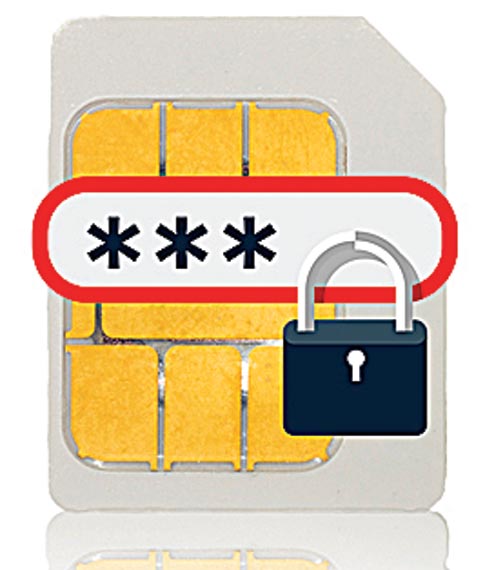
You’ve probably set up a safe and complex phone PIN/pattern and grudgingly enter it each time you have to unlock the device… or not, if you’ve got a phone with a fingerprint reader! Yet, setting up a PIN that locks your SIM is equally important. Should you ever lose your phone, a SIM PIN prevents anyone else from slipping your SIM into another phone and using it to retrieve one-time passwords and security codes for banks/email accounts over SMS. Another obvious piece of advice — remember to set different phone and SIM PINs!

PASSWORDS LONG & STRONG
Most folks still ignore the basic tenets of password setting, opting for easier to type (and remember) passwords like ‘password’ and ‘qwerty’. Using special dates or a kid’s name isn’t much better — it takes the tiniest bit of social engineering from your social media posts to figure these out. Passwords should ideally consist of a combination of letters, numbers and special characters, preferably without dictionary words and those unique to the website you’re using. Help’s at hand via password management apps like LastPass, 1Password or KeePass — which work on both desktop and mobile and help you set up and remember passwords for your saved sites. Keep in mind, strong passwords aren’t meant only for your net banking and wallets, but for the weakest links in the chain — the email accounts you’ve set up to receive the “Forgot Password” emails.

BE DOUBLY SURE
Usernames and passwords are good for most purposes, but for services that need an extra layer of security — your primary email address and social media accounts, for instance — consider two-factor authentication, also known as 2FA. 2FA requires you to enter not only the username and password, but also something that only the authorised user would have with him/ her, in most cases that would be a phone. By linking your phone number to the account, you get a One-Time Password each time you try to log in from a new device, similar to the OTPs you’re used to seeing to authorise credit card transactions online. You can even instal the Google Authenticator or Authy apps on your phone to start using 2FA with Gmail, Facebook and a host of other sites (check twofactorauth.org for a comprehensive list).

STAY SECURE
There’s a lot of tech behind HTTP and secure HTTP (aka HTTPS), but just remember this — if you’re using a web browser on a banking/ e-commerce site, always ensure that the site is using an HTTPS connection, usually indicated by the padlock icon next to the address bar. This ensures any data passed between your device and the server is only shared between these two machines — a missing (or broken) padlock sign is okay for the average news site or blog, but a big no-no for any financial dealings online.

REDUCE WALLET EXPOSURE
Most digital wallets let you deposit up to Rs 20,000 per month before you need to complete additional KYC formalities. It may, however, be wise to maintain a low balance on the wallet, and top it up as you go along. Apart from the obvious safety aspect of exposing yourself to lower risk in cases of fraud or theft, you’re not earning a penny in interest for the balance you hold in your wallet, so the money’s better off in your bank account instead!

STAY PRIVATE IN PUBLIC
With several transport services and shopping establishments offering free public Wi-Fi, it’s tempting to connect onto these open, unsecured networks and not use up your mobile data plan. Word from the wise — Don’t! And if you must, secure your communications via a VPN (Virtual Private Network) service. In simplest terms, a VPN service creates a secure, encrypted communication, a private tunnel if you will, between your device and the VPN provider’s server. Since the communication is garbled to anyone trying to eavesdrop on your personal information, you can even conduct financial/ banking transactions the next time you’re logged into the taxi cab’s free Wi-Fi. And the options are many, with hundreds of providers to choose from, though I recommend taking a look at PrivateInternetAccess, NordVPN or TunnelBear first.

MALWARE BEWARE
You’ll probably be conducting the bulk of your digital transactions on either your phone or your PC, so it’s even more important that you keep your devices malware free. Translated, you need to watch which sites you visit, which software you instal — malware can come in the form of free or pirated copies of legitimate software or web browser plugins that you download from seedy websites, and it can potentially spy on what you’re typing on your computer, including usernames and passwords. You can instal Avast or Windows’ Defender anti-malware software to weed out the suspect software. Keep your OS up-to-date with the mandatory software patches recommended from time to time, and use only the official Google or Apple app stores to download apps. Also, be watchful of apps requesting permissions that go against basic common sense. A little prudence, and your wallet will thank you later.

MOBILE LOCKDOWN
Even if your device falls into the wrong hands, which could even be someone who’s just borrowed your phone to make a quick call, certain apps like your bank and wallet apps shouldn’t be left vulnerable. You can use apps like AppLock (for Android) so that apps you specify need a password before you can launch them. Also, familiarise yourself with the remote wipe options for your device — in the worst case scenario of you losing the device, both Android and Apple devices let you wipe the device completely, remotely over the Internet.
Tushar Kanwar is a tech columnist and commentator.
Follow him on Twitter @2shar.
Mail your tech queries to t2onsunday@abp.in